Learn how workplace ergonomics can help you improve desk posture, create a more comfortable office workstation, and reduce everyday strain on your neck, back, shoulders, and wrists. Whether you work in an office, work from home, or spend hours using a computer, making small changes to your ergonomic workstation setup may help you work more comfortably throughout the day.
Poor workstation positioning, prolonged sitting, repetitive movements, and limited movement breaks can contribute to discomfort during or after work. While posture is only one factor that may influence musculoskeletal symptoms, adjusting your workspace and changing positions regularly can help support more comfortable movement habits.
At Pain Free Health Clinic, we understand that everyday activities, including sitting at a desk, typing, and standing for extended periods, can affect how your body feels and moves. Understanding workplace ergonomics is a practical starting point for creating a workspace that better suits your body and work requirements.
Workplace ergonomics is the practice of adapting your workstation, equipment, and work habits to suit your physical needs and the tasks you perform.
Office ergonomics focuses on how your chair, desk, computer monitor, keyboard, mouse, lighting, and daily movement habits work together. A properly arranged workstation can make it easier to maintain a comfortable working position, reach frequently used items, and avoid unnecessary movements.
Poor office ergonomics may contribute to discomfort involving the:
These symptoms can have multiple causes, and workstation setup is not always the only contributing factor. However, improving workplace ergonomics can be a useful part of a broader approach to everyday comfort and movement.
1. Practice Proper Sitting and Standing Posture at Work
Proper desk posture is a common concern for people who spend much of the workday sitting at a computer. However, good posture does not mean holding your spine in one perfect position all day.
Instead, aim for a comfortable, supported position and change your posture regularly.
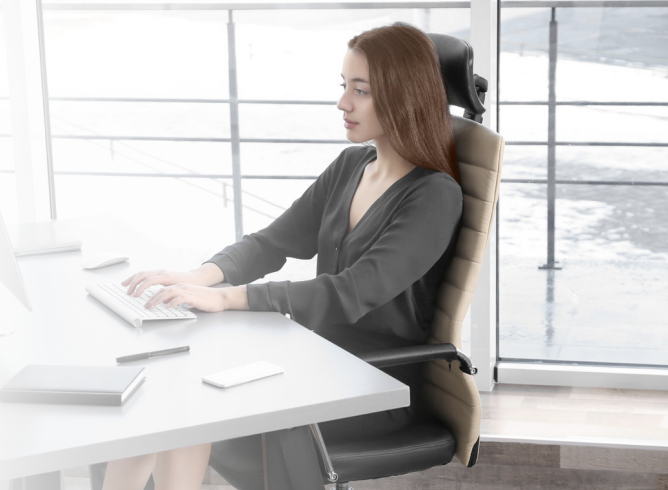
How to Improve Sitting Posture at a Desk
When setting up your office chair and desk, consider these sitting posture tips:
These ergonomic sitting adjustments can help you find a more comfortable position for computer work without forcing your body to remain rigid.
How to Maintain Comfortable Standing Posture at Work
If your job involves standing for long periods, standing posture and weight distribution also matter.
Consider these workplace posture tips:
Prolonged standing can also contribute to discomfort. The goal is not simply to replace sitting with standing, but to introduce movement and variation throughout your workday.
2. Avoid Common Office Posture Mistakes
Certain computer work habits can make an ergonomic workstation less comfortable. Recognizing these habits can help you identify practical changes to your office setup.
Common Ergonomic Mistakes to Watch For
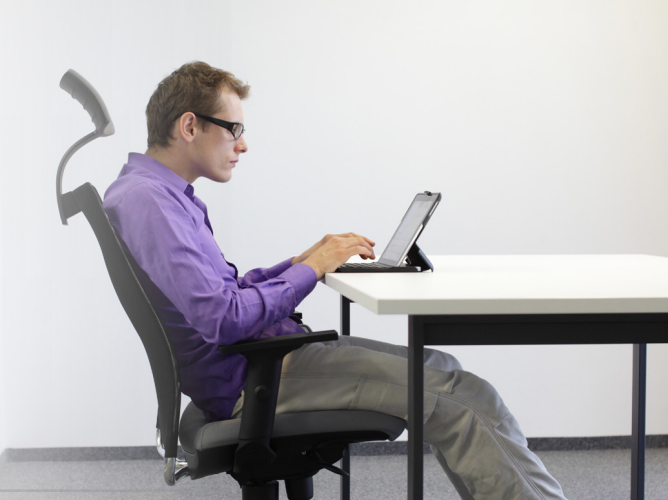
Slouching at your desk: Frequently collapsing forward may make your working position less comfortable. Adjust your chair and screen to help you sit with appropriate support.
Leaning toward your computer: If you regularly lean forward to read, consider adjusting your monitor distance, screen height, text size, or display settings.
Hunching your shoulders while typing: Your desk, keyboard, and chair may need adjustment if you have to lift your shoulders to reach your equipment.
Reaching too far for your mouse: Position your mouse close to your keyboard to reduce repeated reaching.
Looking down at a laptop for hours: A laptop's built-in screen and keyboard can make it difficult to position both comfortably for extended use. An external keyboard and mouse, together with a laptop stand, may help.
Staying in one position for too long: Sitting with good posture does not eliminate the need for movement breaks.
Twisting to reach frequently used items: Keep your phone, documents, and other regular work materials within comfortable reach.
Remember that there is no single posture that is ideal for everyone. A comfortable workstation should support your individual needs, and regular movement remains important.
3. Set Up an Ergonomic Desk and Office Chair
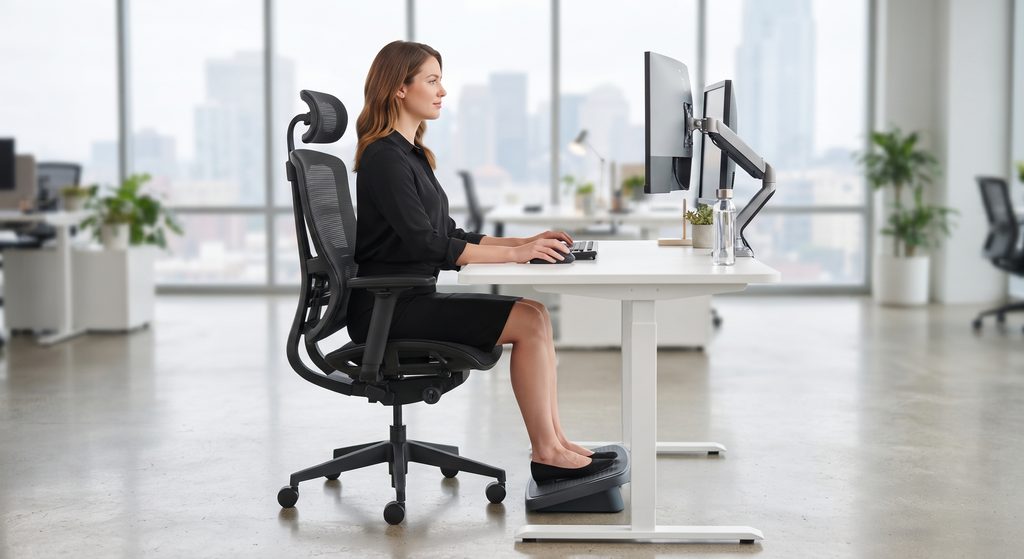
An ergonomic desk setup helps you position your chair, desk, and equipment so you can work without unnecessary reaching or awkward positioning.
How to Adjust Your Office Chair
Your chair should allow you to sit comfortably while keeping your feet and legs supported.
Start with these office chair ergonomics tips:
If your chair is not adjustable, you may still be able to improve your sitting position by adjusting the desk arrangement, using a suitable footrest, or adding appropriate back support.
Find a Comfortable Desk Height
Your desk height should allow you to use your keyboard and mouse with relaxed shoulders and comfortable elbow positioning.
If your desk is too high, you may find yourself raising your shoulders. If it is too low, you may lean forward or bend your upper body toward the work surface.
If possible, adjust your chair and desk together. The goal is to make the workstation fit your body rather than forcing yourself into an uncomfortable position to fit the furniture.
Organize Your Office Workstation
A practical workstation layout can help reduce unnecessary reaching and twisting.
Keep frequently used items, such as your keyboard, mouse, phone, and documents, within comfortable reach. Leave enough space to move your chair and change positions throughout the day.
These simple ergonomic desk setup changes can make everyday computer work more comfortable without requiring a complete office makeover.
4. Position Your Keyboard and Mouse for Better Ergonomics
Keyboard and mouse placement is an important part of computer workstation ergonomics, especially if you spend several hours a day typing, editing documents, or using digital tools.
Poor positioning may encourage repeated reaching, awkward wrist angles, and unnecessary shoulder movement.
Keyboard Ergonomics Tips
For a more comfortable typing position:
Mouse Ergonomics Tips
Your mouse should be close enough that you can use it without repeatedly reaching away from your body.
Try to keep your shoulder relaxed and your wrist comfortable while moving the mouse. If your current setup causes discomfort, you may benefit from adjusting the mouse position or trying an alternative device that suits your needs.
If you regularly hold a phone between your ear and shoulder during calls, consider using a headset or hands-free option instead.
Good keyboard and mouse ergonomics are particularly relevant for office workers, remote employees, freelancers, and anyone whose daily tasks involve prolonged computer use.
5. Adjust Your Computer Monitor to Reduce Neck Strain
Computer monitor positioning can influence how you hold your head and neck throughout the workday.
If you frequently tilt your head, look down, or lean forward to see your screen, your monitor setup may need adjustment.
What Is the Best Monitor Height and Distance?
A practical starting point is to position your monitor approximately an arm's length away, then adjust it based on your screen size, vision, and comfort.
For a more ergonomic computer workstation:
The ideal screen height can vary depending on your vision, glasses, monitor size, and working tasks. Adjust the setup according to what allows you to view the screen comfortably.
How to Improve Laptop Ergonomics
Laptop ergonomics can be challenging because the screen and keyboard are connected. Raising the screen may improve your viewing position, but it can make the built-in keyboard uncomfortable to use.
If you work on a laptop for extended periods, consider using:
This arrangement allows you to adjust the screen and input devices separately.
If you work remotely or from different locations, pay attention to your laptop posture even when using a temporary workstation. Small adjustments and regular movement breaks can help you avoid remaining in an uncomfortable position for too long.
6. Take Regular Movement Breaks During the Workday
One of the most useful workplace ergonomics habits is to move regularly.
Even when your office chair, desk, and computer are properly positioned, prolonged sitting or standing may still contribute to discomfort. Changing positions throughout the day gives you opportunities to move different parts of your body.
What Can You Do During a Movement Break?
During short breaks from computer work, consider:
You do not need to wait until you feel stiff before changing positions. Try incorporating movement into your routine in ways that fit your workload and physical needs.
How Often Should You Take Breaks From Sitting?
There is no single break schedule that works for every worker. Your ideal routine depends on your tasks, working environment, comfort, and individual needs.
You might start by setting reminders to change positions periodically, taking brief walking breaks between tasks, or standing up after completing a meeting or project.
If you use a sit-stand desk, alternate between sitting and standing instead of remaining in either position all day. Adjust your monitor and keyboard when you change positions so your workstation remains comfortable.
Remember: Standing all day is not necessarily better than sitting all day. Regular movement, posture variation, and a workstation that suits your needs are all important parts of workplace ergonomics.
7. Reduce Eye Strain and Improve Computer Work Comfort
Workplace ergonomics also includes your visual environment. Spending long periods looking at a computer screen may contribute to tired eyes, headaches, or difficulty focusing for some people.
To make computer work more comfortable:
If eye discomfort persists despite changing your workstation setup, consider seeking advice from an appropriate healthcare professional.
8. Use Ergonomic Habits When Working From Home
Working from home can make it harder to maintain a consistent ergonomic workstation. You may work from a dining table, couch, kitchen counter, or temporary desk that was not designed for extended computer use.
Although you may not have access to a fully adjustable office setup, there are practical ways to improve home office ergonomics.
Home Office Ergonomics Checklist
If you frequently work from a couch or bed, pay attention to whether your position makes you lean forward, twist your body, or hold your neck at an uncomfortable angle.
You do not need an expensive home office to begin improving your workstation ergonomics. Start with the adjustments that make the biggest difference to your comfort and daily work habits.
9. Improve Your Overall Working Environment
Ergonomic workstation setup involves more than your chair and computer. Your surrounding environment can also influence how comfortably you work.
Consider these factors when organizing your office:
Lighting: Use enough light to read comfortably and adjust your screen position to minimize glare.
Temperature: Maintain a comfortable working temperature where possible.
Noise: Reduce distracting background noise when practical, especially during tasks that require concentration.
Workspace organization: Keep frequently used equipment accessible and remove obstacles that prevent you from changing positions comfortably.
Movement space: Leave enough room around your desk and chair to stand up, stretch, and walk briefly.
Equipment placement: Position your monitor, keyboard, mouse, and documents to suit the tasks you perform most frequently.
A well-organized workstation can make it easier to follow comfortable working habits throughout the day.
10. When Should You Seek Physiotherapy for Work-Related Pain?
If you regularly experience neck pain, lower back pain, shoulder discomfort, wrist pain, or stiffness during or after work, it may be helpful to discuss your symptoms with a qualified healthcare professional.
Work-related discomfort can have several contributing factors, including repetitive activities, prolonged positions, workload, previous injuries, and other individual factors. It is important not to assume that poor posture is the only cause.
How Can Physiotherapy Help With Work-Related Discomfort?
A physiotherapist can assess your symptoms, movement, strength, and relevant physical factors to help determine an appropriate approach for your needs.
Depending on your assessment, physiotherapy may include:
Physiotherapy recommendations should be individualized rather than based on a one-size-fits-all posture rule.
If you experience persistent or worsening symptoms, arrange an appropriate assessment. Seek prompt medical attention for new or worsening weakness, significant numbness, or severe pain. Sudden neurological symptoms or loss of bladder or bowel control require urgent medical attention.
Workplace Ergonomics Checklist: 10 Ways to Improve Your Desk Setup
Before starting your workday, use this quick ergonomic workstation checklist to identify simple improvements.
You can use this checklist whether you work in a traditional office, a home office, or another environment that requires prolonged computer use.
Frequently Asked Questions About Workplace Ergonomics
What Is the Best Posture for Sitting at a Desk?
The best sitting posture is one that allows you to work comfortably with appropriate support. Keep your feet supported, your shoulders relaxed, and your keyboard and mouse within comfortable reach. Rather than trying to maintain one rigid position, change positions regularly throughout the day.
How Can I Improve My Posture at Work?
Start by adjusting your chair, desk, monitor, keyboard, and mouse to suit your body and tasks. Avoid repeatedly leaning toward your screen or reaching for equipment. Take regular movement breaks and vary your position throughout the day.
Can Poor Desk Ergonomics Cause Neck and Back Pain?
An uncomfortable workstation, prolonged positions, and repetitive tasks may contribute to neck and back discomfort. However, these symptoms can have multiple causes. Improving your workstation may help support comfort, but persistent symptoms may require an individualized assessment.
Is a Standing Desk Better Than Sitting All Day?
A standing desk can make it easier to alternate between sitting and standing, but standing continuously is not necessarily better. Changing positions regularly and incorporating movement throughout the workday are important considerations.
How Can I Make My Home Office More Ergonomic?
Choose a comfortable chair and work surface, support your feet, position your screen for comfortable viewing, and keep your keyboard and mouse within reach. If you use a laptop for extended periods, consider an external keyboard, mouse, and laptop stand.
When Should I See a Physiotherapist for Desk-Related Pain?
Consider seeing a physiotherapist if neck, back, shoulder, or wrist discomfort persists, affects your daily activities, or makes it difficult to work comfortably. A physiotherapist can assess your symptoms and recommend an individualized plan when appropriate.
Improve Your Workplace Ergonomics With Small, Practical Changes
Improving workplace ergonomics does not require a complete office renovation or expensive equipment. Adjusting your desk and chair, improving your computer monitor position, keeping your keyboard and mouse within comfortable reach, and taking regular movement breaks are practical ways to start.
The most important principles are to make your workstation suit your needs, avoid remaining in one position for too long, and pay attention to recurring discomfort.
If work-related pain is affecting your daily activities, a professional assessment may help you understand the factors contributing to your symptoms and determine appropriate next steps.
Need Help With Work-Related Pain or Movement Concerns?
Pain Free Health Clinic provides physiotherapy and other allied health services to help people address a range of movement-related concerns.
Our team serves patients at our clinics in Richmond, Ladner, South Surrey, and Langley.
If neck pain, back discomfort, or other symptoms are affecting your workday, our team can help you explore whether a physiotherapy assessment may be appropriate for your needs.
This article is for general educational purposes only and is not a substitute for individualized medical advice, diagnosis, or treatment.
Learn More About Pain Free Health Clinic
Follow Pain Free Health Clinic for more educational content about physiotherapy, chiropractic care, rehabilitation, movement, and everyday physical health.


